CygNet Device Copy Utility
Important: Copied (target) devices must be the same manufacturer and model as the source device. For instance, you cannot copy a ROC809 remote device as a FloBoss 107 remote device.
The Device Copy utility (DeviceCopy.exe) enables you to make multiple "deep" copies of a device in the same Device Definition Service (DDS). Unlike the single "shallow" copy you can make in CygNet Explorer, this utility makes multiple copies simultaneously.
Once the copy is complete, new devices have the same configuration as the source devices, except the copied devices have new device facilities. Configuration items that stay the same from source device to target device(s) include data groups, UDC mappings, and UIS commands. However, points are not recreated. To create new points in bulk for the new device facilities, access the Facility Point Copy dialog box from either CygNet Explorer (PNT service) or the Point Configuration Manager utility. See Copying Multiple Points for more information.
The Device Copy utility is stored in the CygNet\Utilities directory (DeviceCopy.exe) on the host server.
Starting Device Copy
Installing and Launching
To install and launch (start) the application or utility using version management:
- Use CygNet Client Installer to install and launch the application. Once installed you can use CygNet Client Installer to start the application.
-OR-
- If previously installed, click Start > All Programs > CygNet > <name of the application or utility> or double-click the desktop shortcut.
Alternatively, browse to the CygNet\Utilities directory using Windows Explorer and double-click the program icon. You can also start an application or utility from a command line. These methods do not provide version management.
The Device Copy dialog box appears.
To Copy Remote Devices
- Using Windows Explorer, go to the CygNet\Utilities directory on the host server and open the DeviceCopy.exe.
- Click Create File.
- On the Export Device dialog box, click the Browse button beside the Device ID box.
- Locate and double-click your source device. This is the device you are copying.
- If you want to export configuration information for all selected devices of the same type, check Export all devices of same type.
- Beside the File to Create box, click the Browse button.
- Name your source device configuration .csv file, select where you want it saved to upon creation, and click Save.
- On the Export Device dialog box, click Create to create your source configuration .csv file.
|
CygNet Device Copy Utility - Export Device |
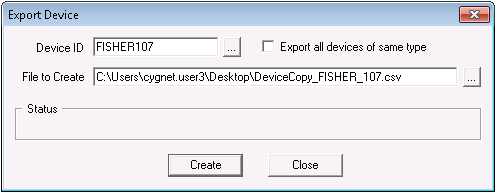
- After you receive confirmation that the file was created, click OK, and click Close. Notice that the path and file name for the new .csv file appears in the File to Create field.
- Using either a text editor or Microsoft Excel, open the .csv file you created in step 8 above.
- On a row-by-row and column-by-column basis, add device IDs and other appropriate device information to the .csv file. Each new row you add represents a new device. Column information should parallel the column information for the source device. If the source device has multiple linked facilities, there is a column for each facility; specify the same number of linked facilities as those on the source device. You can add, edit, or delete linked facilities in the DDS after the copy is complete. The topmost line in the text editor and in Excel is the header. Do not alter this line. Column names in the header are dependent upon the manufacturer and model of the source device.
- When you are finished entering device configuration information and have added all of the new device rows required, save the .csv file and close it.
- Return to the Device Copy utility, go to the Input File box, and click the Browse button.
- Select the .csv file you created in step 8 above and click Open. This adds the file to the Input File field.
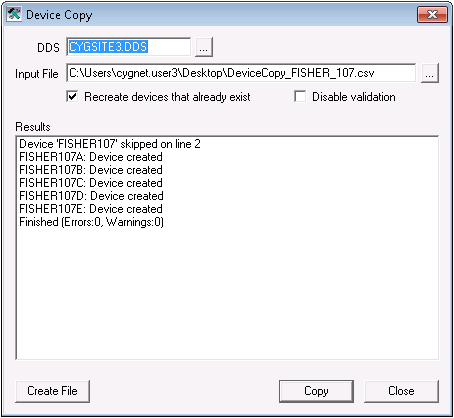
- If you want to delete and re-add devices that already exist in the DDS but which are also specified as target devices, check Recreate devices that already exist. This option results in the loss of device transaction data. If this option is left disabled and an existing device is specified as a target device, the device is skipped.
- If you want to disable the Device Copy utility's device parameter validation feature, which checks to see if parameters fall within manufacturer settings (for example, valid address ranges), check Disable validation.
- Click Copy to copy the device(s). Copy results appear in the Results field of the Device Copy utility.
|
CygNet Device Copy Utility - Device Copy Results |
- If you are finished with the Device Copy utility, click Close.
Important: Although your remote devices have been successfully copied, there are additional steps necessary to ensure that these remote devices are fully available to the rest of your CygNet system. Source facility attributes are not recreated during your copy. To add facility attributes efficiently, use the Facility Load utility. Source points are not recreated during your copy. To add new points in bulk for the new device facilities, use the Facility Point Copy utility. Finally, if you are using Groups, update existing group hierarchies. Open your Group Manager utility and click Build > All for Group Service.


